User Interface
Here’s an overview of the main parts of the Codex Catalog interface.
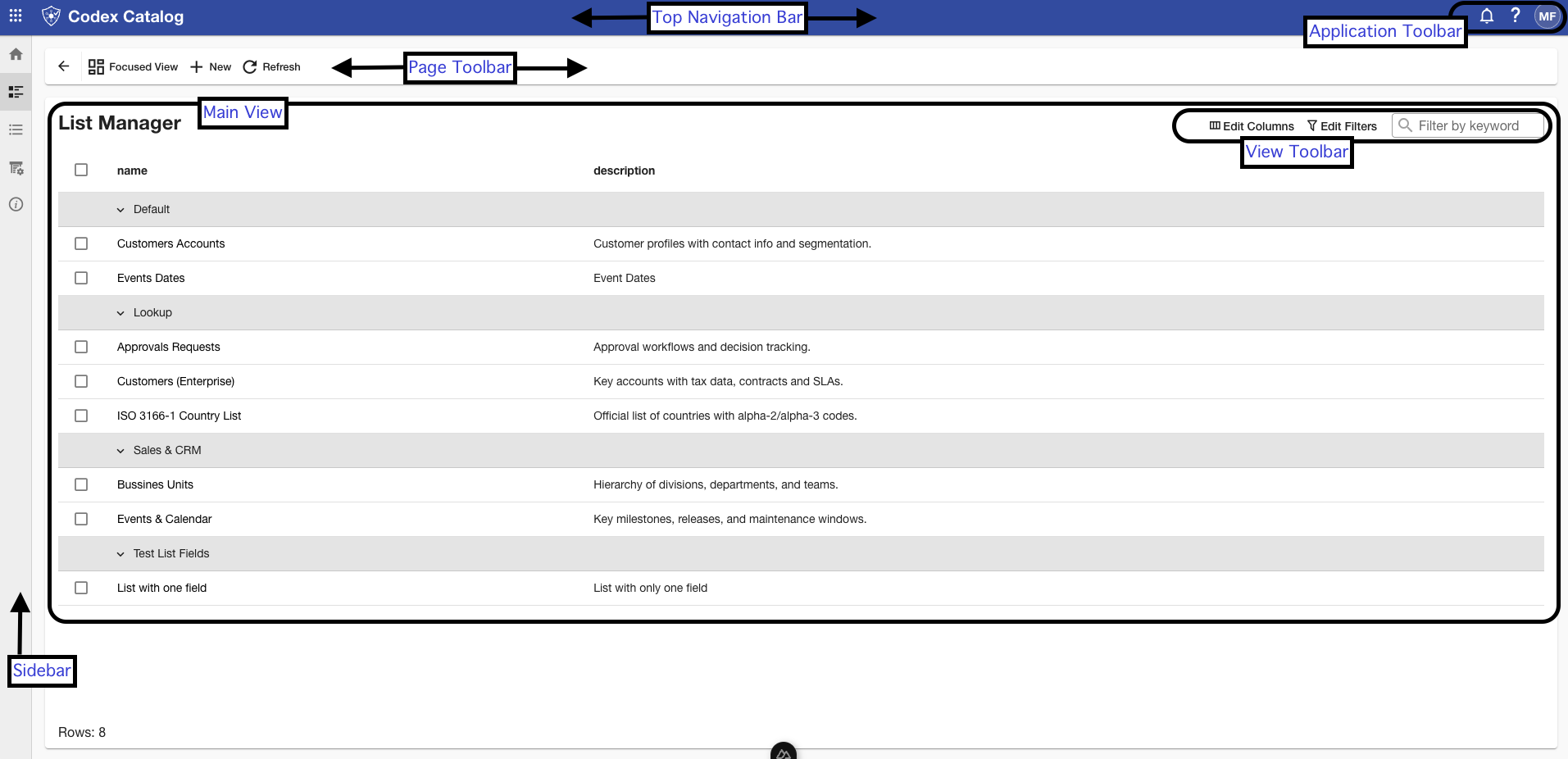
Top Navigation Bar
This is the header of the application. It shows the application name and contains the Application Toolbar on the right.
On the top left corner (nine-dot menu) you can toggle the Sidebar, allowing you to show or hide the names of the options that each icon in the sidebar represents.
Application Toolbar: Notifications and Settings
Found at the top right side of the screen, these icons give you quick access to notifications, help, and your user profile.
In case you have an admin profile, you will also see the settings icon.
Page Toolbar: Grid and Focused View
Located just below the Top Navigation Bar and above the Main View, the Page Toolbar provides the main controls for working with your lists and data.
The first icon is always the Toggle View, which lets you switch between two options:
- Grid View: The Grid View is the default mode. It displays all available lists in a table format, typically with columns such as Name and Description. It shows all lists at once.
- Focused View The Focused View displays a single list in a two-pane layout. It shows the details of one single list at the time.
Depending on what you select and what you are managing, the other available actions in the Page Toolbar may change.
A Refresh button is always present, no matter the view, allowing you to update the display with the latest data.
Main View
The Main View is the central workspace of the application. It shows the information you choose to work with and adapts depending on the view you are in.
Regardless of the view, it always includes a footer that indicates the number of rows currently displayed.
View Toolbar
The View Toolbar is located at the top-right corner of the Main View. It provides access to options for ordering and filtering the information you see within the Main View.
There are three main functions:
- Edit Columns lets you choose which columns are shown/hidden.
- Edit Filters allows you to set filters to narrow down the lists being displayed.
- Filter by keyword is a simple search field for quickly finding specific elements.
Sidebar
The Sidebar is the main navigation menu of the Codex Catalog.
From here, you can access the Home, the List Manager, the Data Manager, and the User and Group Management section, as well as additional information about the application.
You can toggle the Sidebar using the nine-dot menu (App Launcher) located on the Top Navigation Bar.
When collapsed, only the icons are shown; when expanded, the names of each section are displayed next to the icons.