Export Data Records
How to export data
-
Go to the Data Manager either from the Home card or from the Page Toolbar.
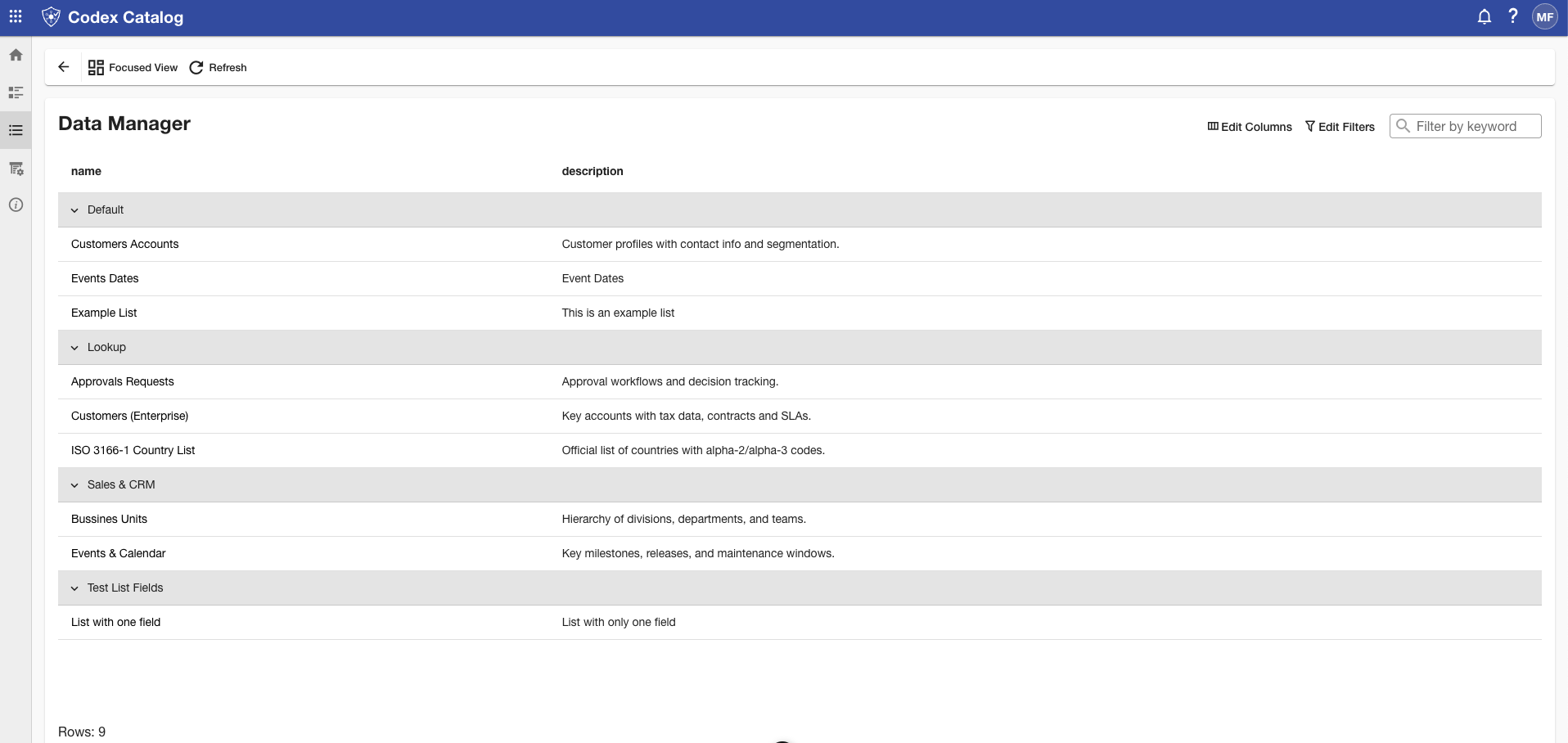
-
In Focused View, click Export.
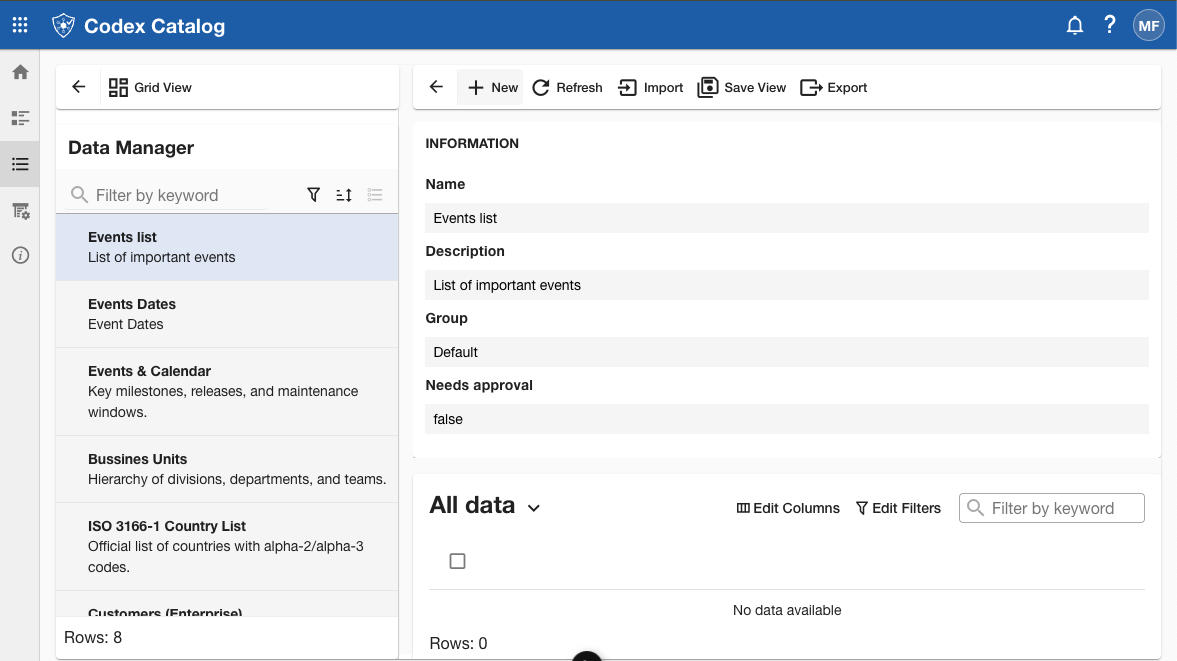
-
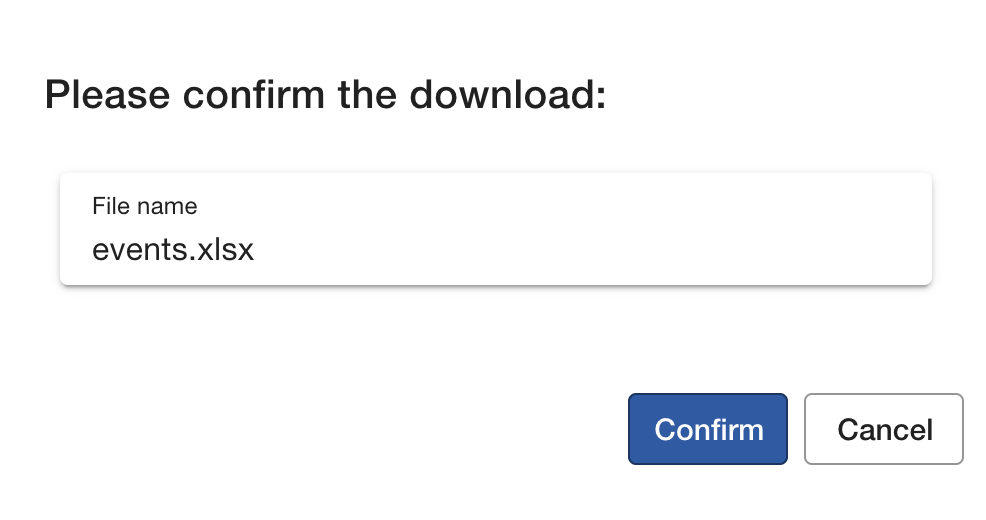
Choose the export format (CSV or Excel).
-
Confirm to download the file.
What happens when exporting data
- The exported file contains the records currently visible in the data table.
- Filters, column selections, and ordering are preserved in the export.
- You can open the file in Excel or another compatible tool.
Note: Use Save View before exporting if you want to keep a consistent filter/column setup.