Edit users
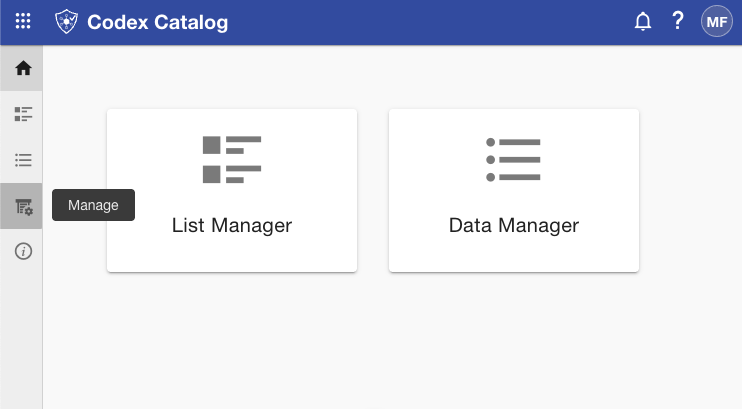
First, access the user management menu by going to the sidebar and selecting "Manage" (fourth icon).
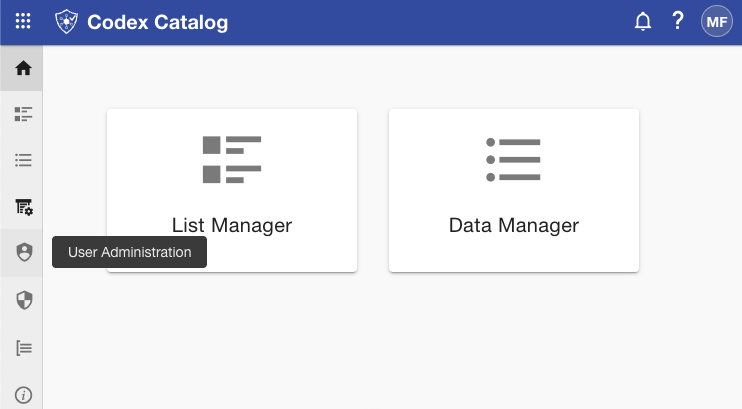
Then, click on "User Administration" (shield icon).
Once you are there, to edit an existing user:
-
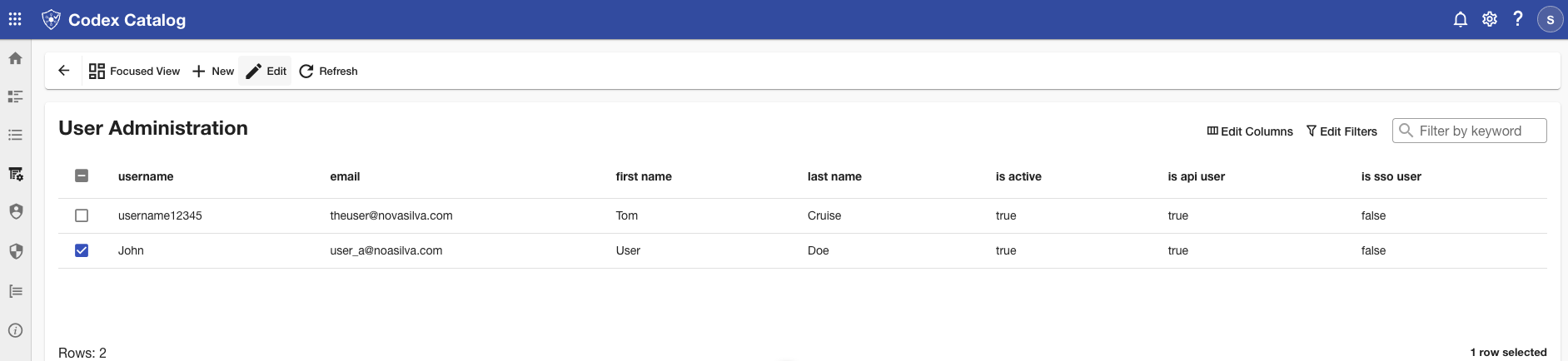
Locate the user you want to modify, and select the checkbox to the left of their name.
-
When a single user is selected, a pencil icon (Edit) will appear. Click on this icon.
Users can only be edited one at a time. The edit option is disabled if multiple users are selected.
-
Update the user’s details as needed.
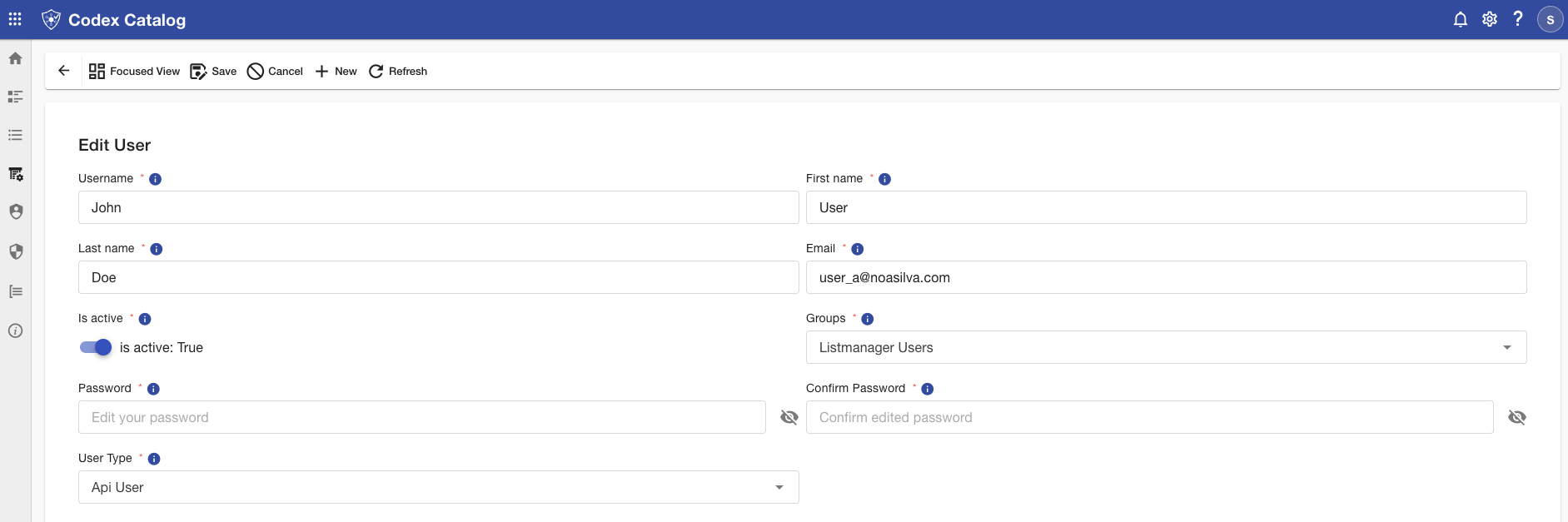
- Username - Keep in mind this is the unique identifier used for login.
- First Name - Update the user’s real first name
- Last Name — Update the user’s real last name.
- Email — Update the email address linked to the username.
- Is Active - Toggle to enable or disable the user’s account. Inactive users cannot log in.
- Groups - Add or remove the user from one or more groups. You can assign them to default groups (Administrator, Manager, User) or any custom groups you have created.
- User Type — Choose whether the user is an API User (used for system integrations) or a Non-SSO User (standard login user).
You will not be able to change a user's password.
Remember:
- Fields marked with a red asterisk (*) are mandatory and can not be left empty.
- To view more information about a field, hover over the information icon (i) next to it — a tooltip will appear displaying additional details.
-
Select Save to apply the changes.