Edit a Data Record
Who can edit?
- You can edit a record if you have been granted Edit permissions for the list.
- The Edit button appears only after selecting a record in Focused View. If you don’t see the button, you don’t have rights.
How to start
-
Go to the Data Manager either from the Home card or from the Page Toolbar.
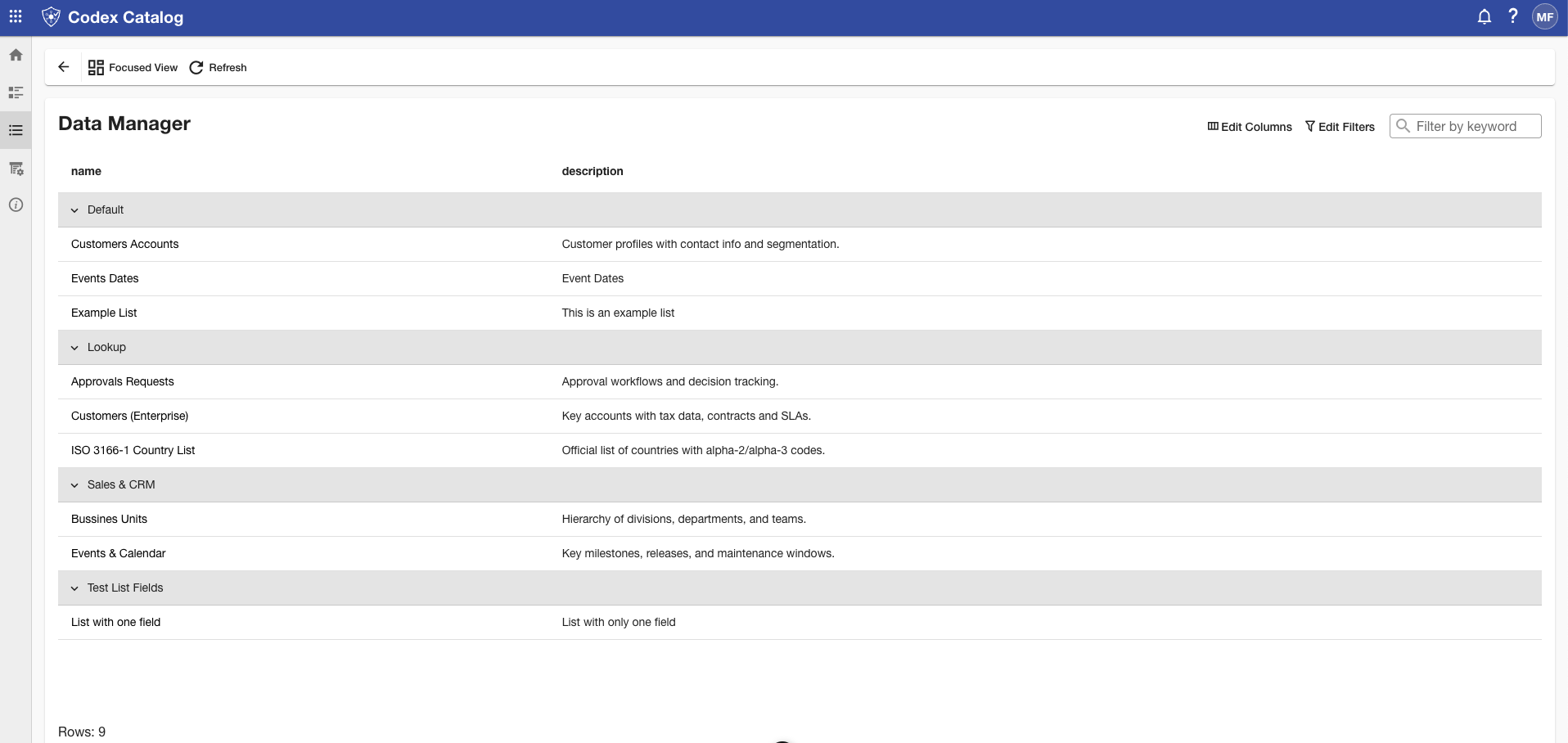
-
In Focused View, select the record you want to update.
-
Click Edit on the Page Toolbar to open the record form.
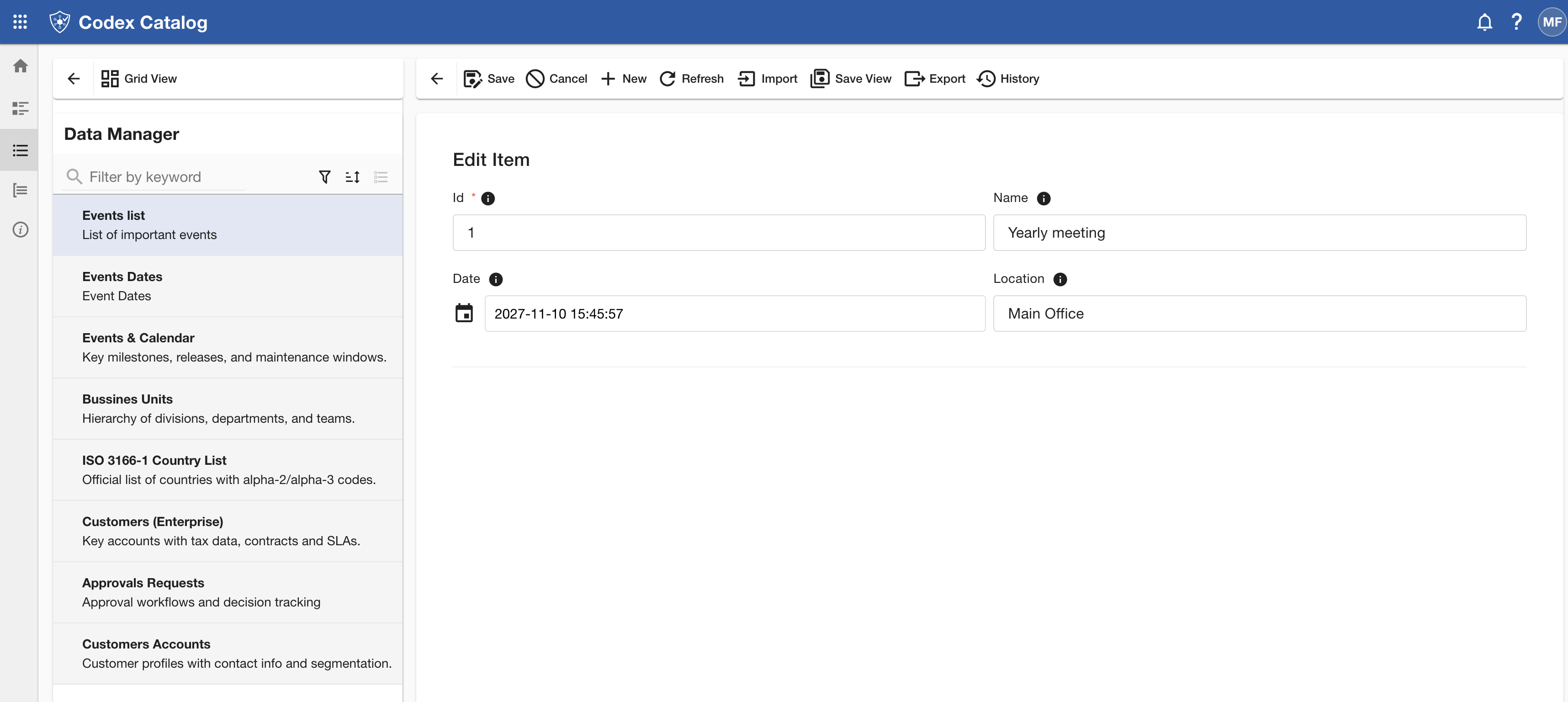
(You’ll land on an “Edit Record” page, similar to the record creation form.)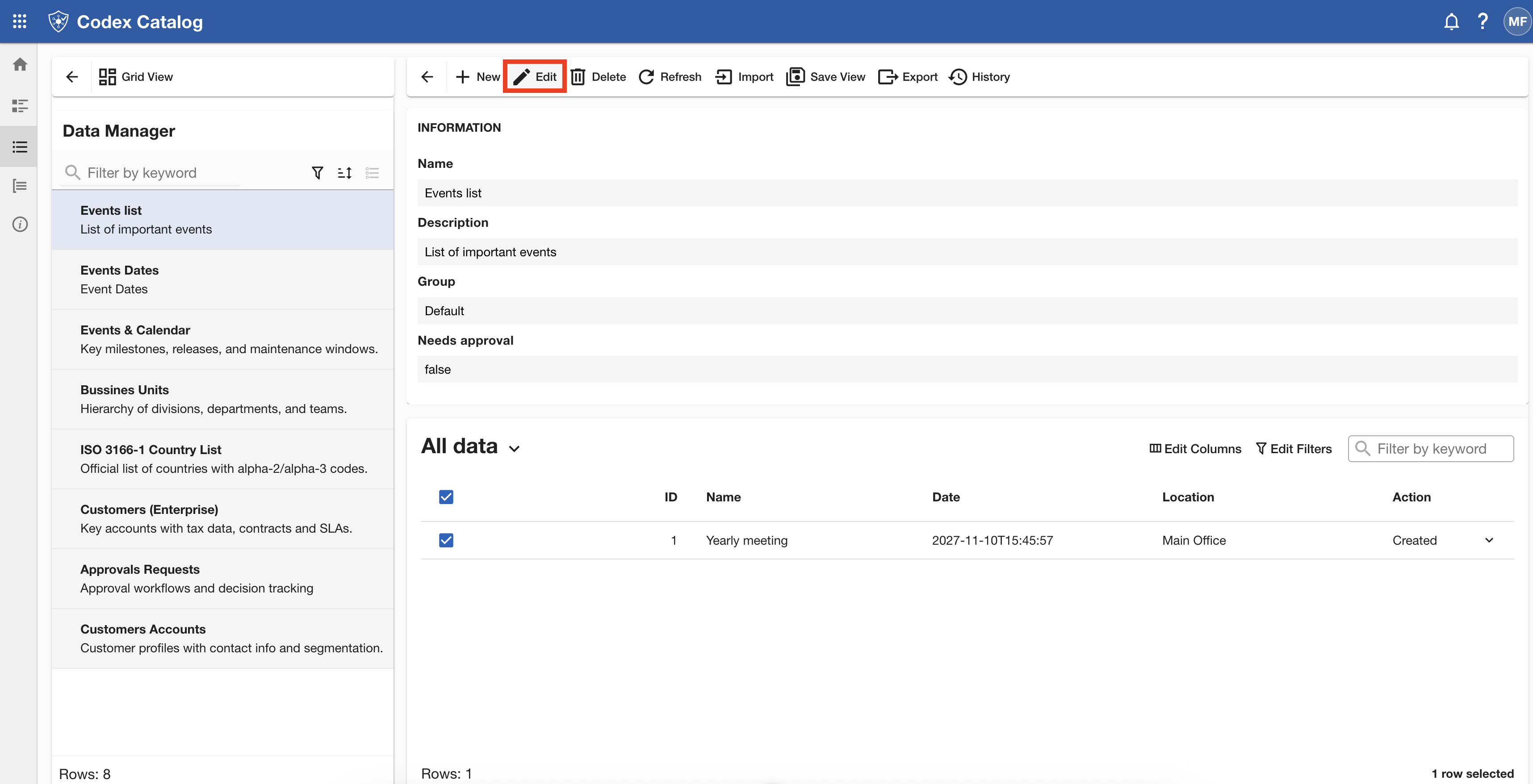
What you can change
- All editable fields defined by the list configuration.
- Required fields cannot be left empty.
- Unique fields must contain unique values across the list.
Remember:
- Fields marked with a red asterisk (*) are mandatory and can not be left empty.
- To view more information about a field, hover over the information icon (i) next to it — a tooltip will appear displaying additional details.
Note: You cannot change the structure of the list (e.g., adding or removing fields) when editing a record.
Save or Cancel
- Click Save to persist your changes.
- Click Cancel to discard them.
Tip: Select the correct record before clicking Edit. If the button is disabled, ensure a record is selected in the data table.