Settings
The Software Settings section centralizes all environment configuration options of the application.
You can find the settings by clicking on the info icon at the sidebar.
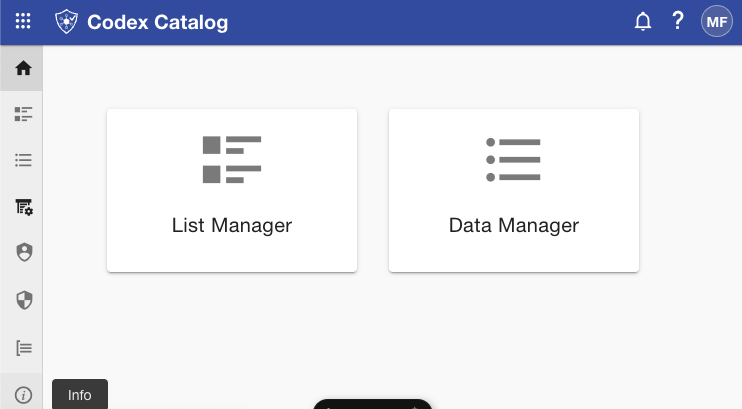
By default, the SSO Config tab opens first for users that have not the administrator role.
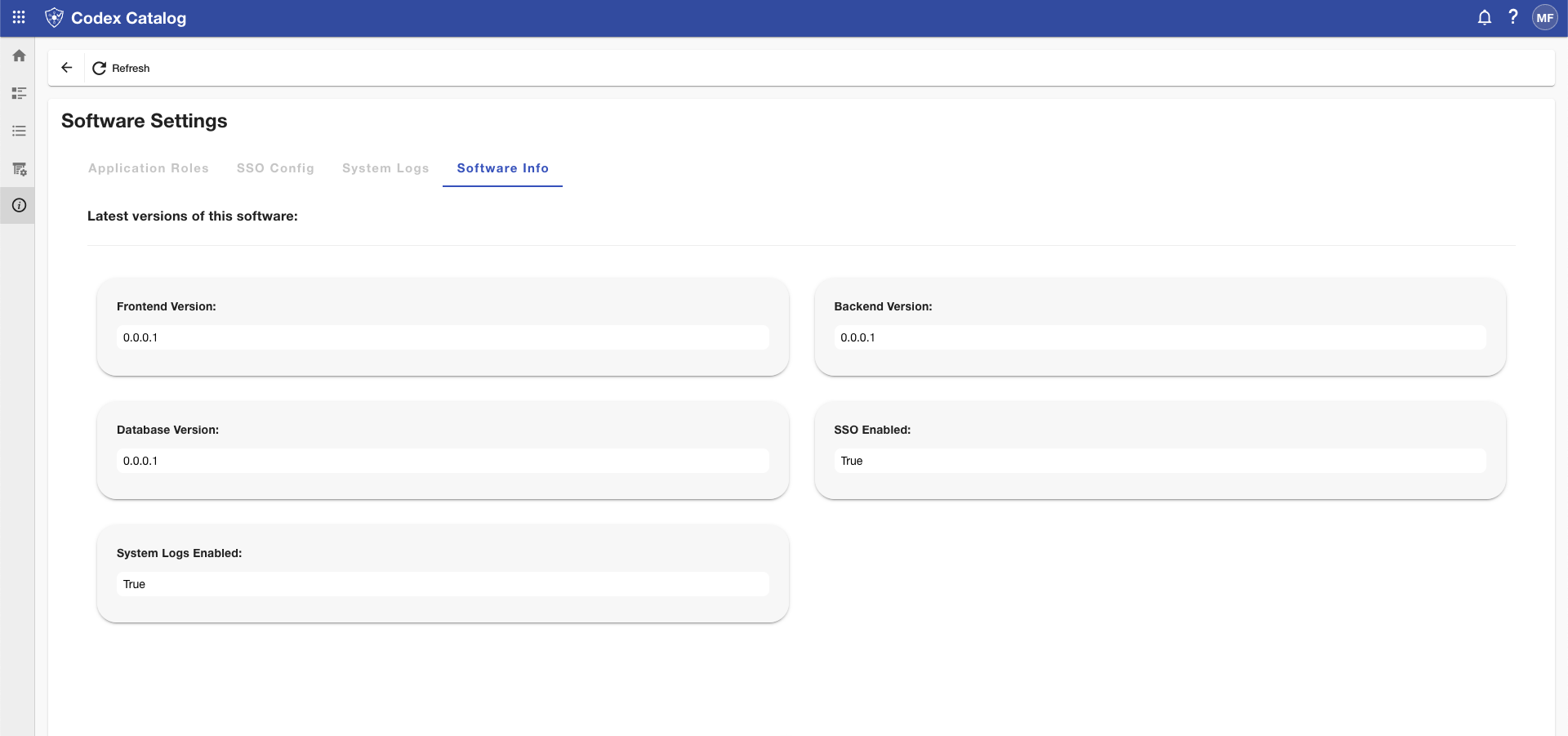
The first three tabs — SSO Config, System Logs, and Maintenance Mode — are available only to Administrators.
The Software Info tab is read-only.
For more details, see the dedicated page: Software Information.
Application roles
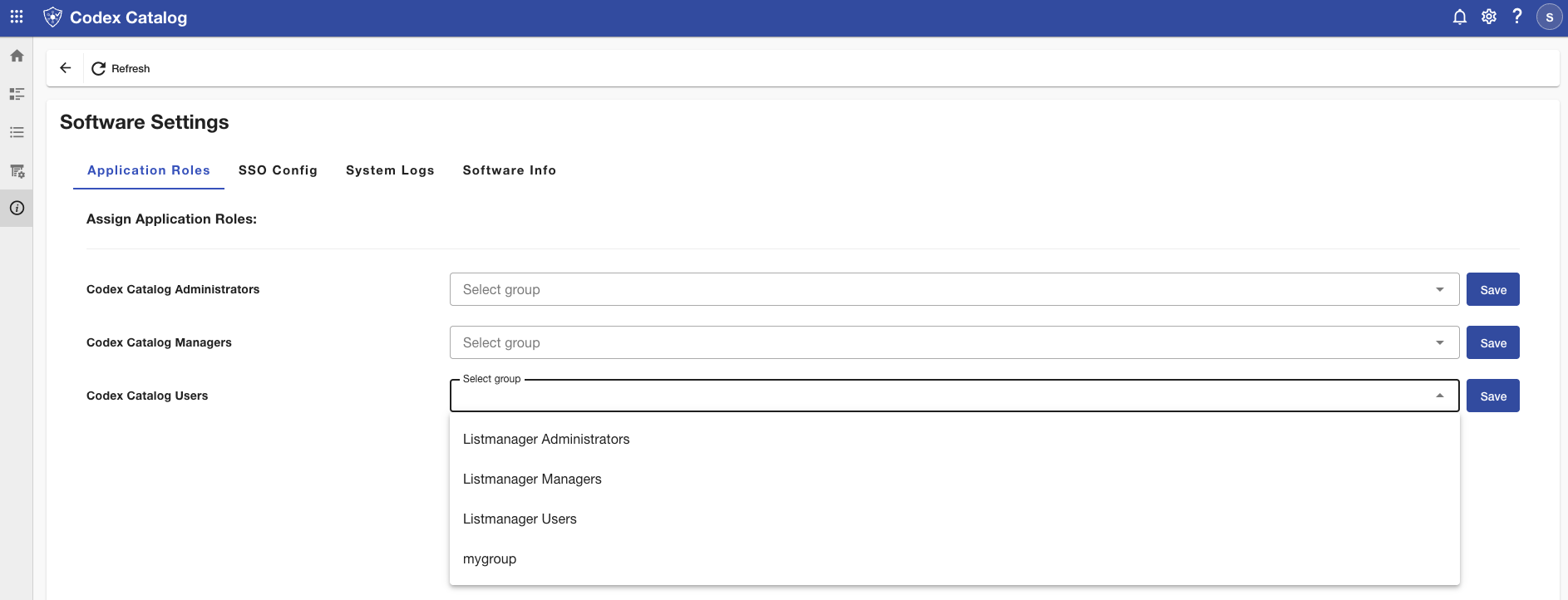
Here, you can assign application roles to certain groups defined in the Codex Catalog.
See more in Settings.
SSO Config (Admin only)
This tab allows Administrators to configure and manage Single Sign-On (SSO) for the application.
By default, Enable SSO Login is set to Off, and all input fields are disabled.
When switched to On, the SSO Login feature becomes active, and all configuration fields become editable.
At this point, the Administrator can enter and save the required credentials.
You will need to fill in the following mandatory fields:
- Tenant ID — Must be a valid GUID/UUID (e.g.,
123a4567-b89c-10d1-e112-131415161718). - Frontend Client ID — Must be a valid UUID.
- Frontend Client Secret — Hidden by default. Click Edit to modify it, then Save or Cancel.
Also, you can fill in these other fields (not mandatory):
- Backend Client ID — Must be a valid UUID.
- Backend Client Secret — Hidden by default. Click Edit to modify it, then Save or Cancel.
If any of the values entered are invalid, inline validation errors will appear (for example, a red outline with helper text).
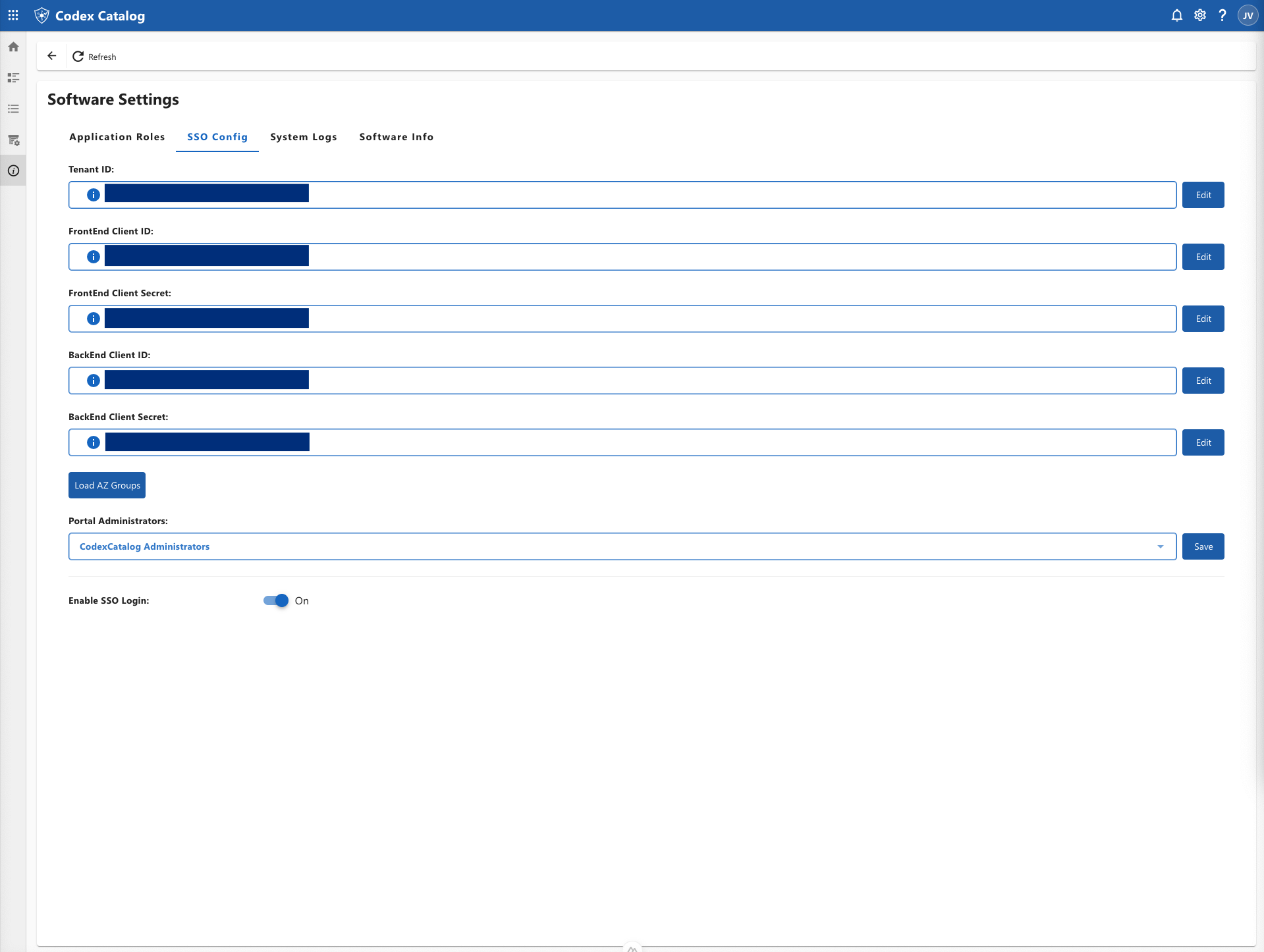
After saving the configuration, click on Load AZ Groups.
A Microsoft Login menu will appear. Select your Microsoft Account.
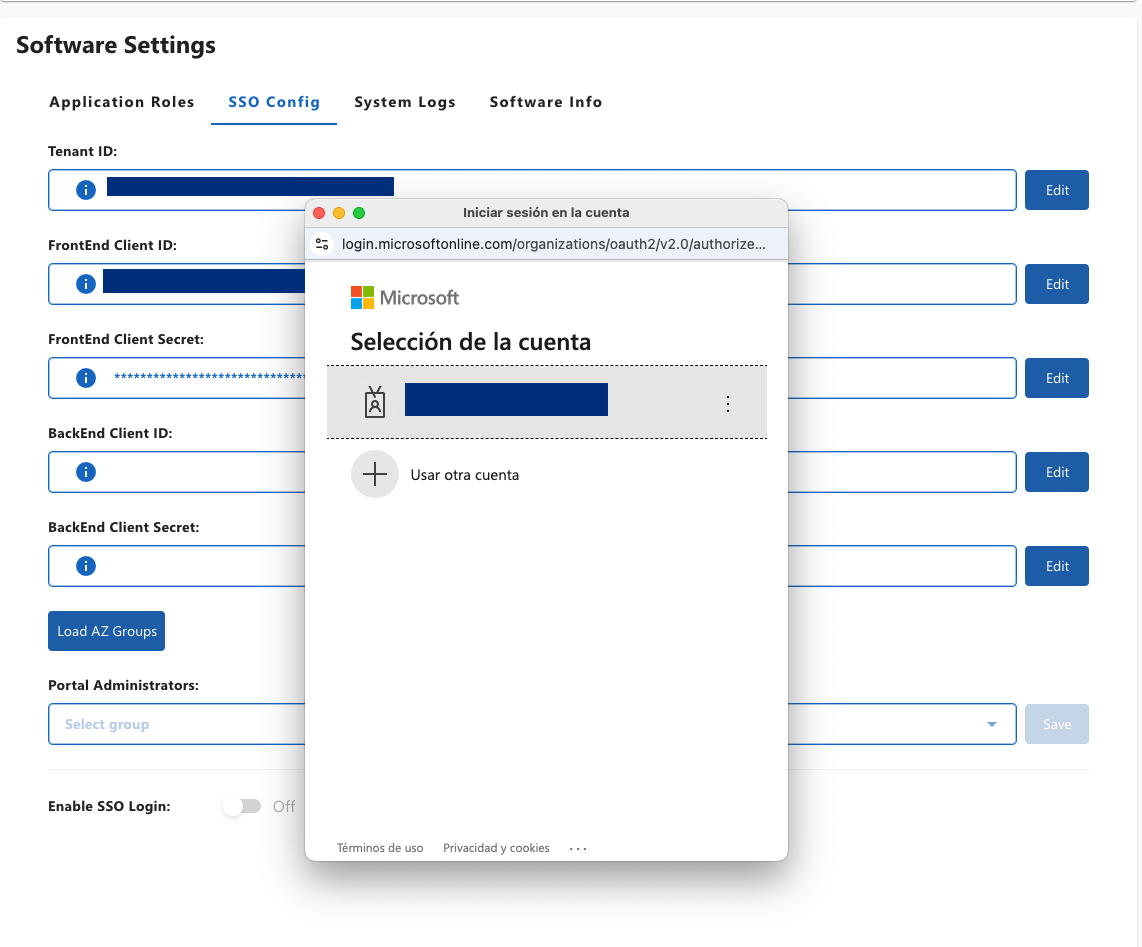
Then, the Portal Administrators menu will be enabled. Select a group of users to define them as the Portal Administrators.
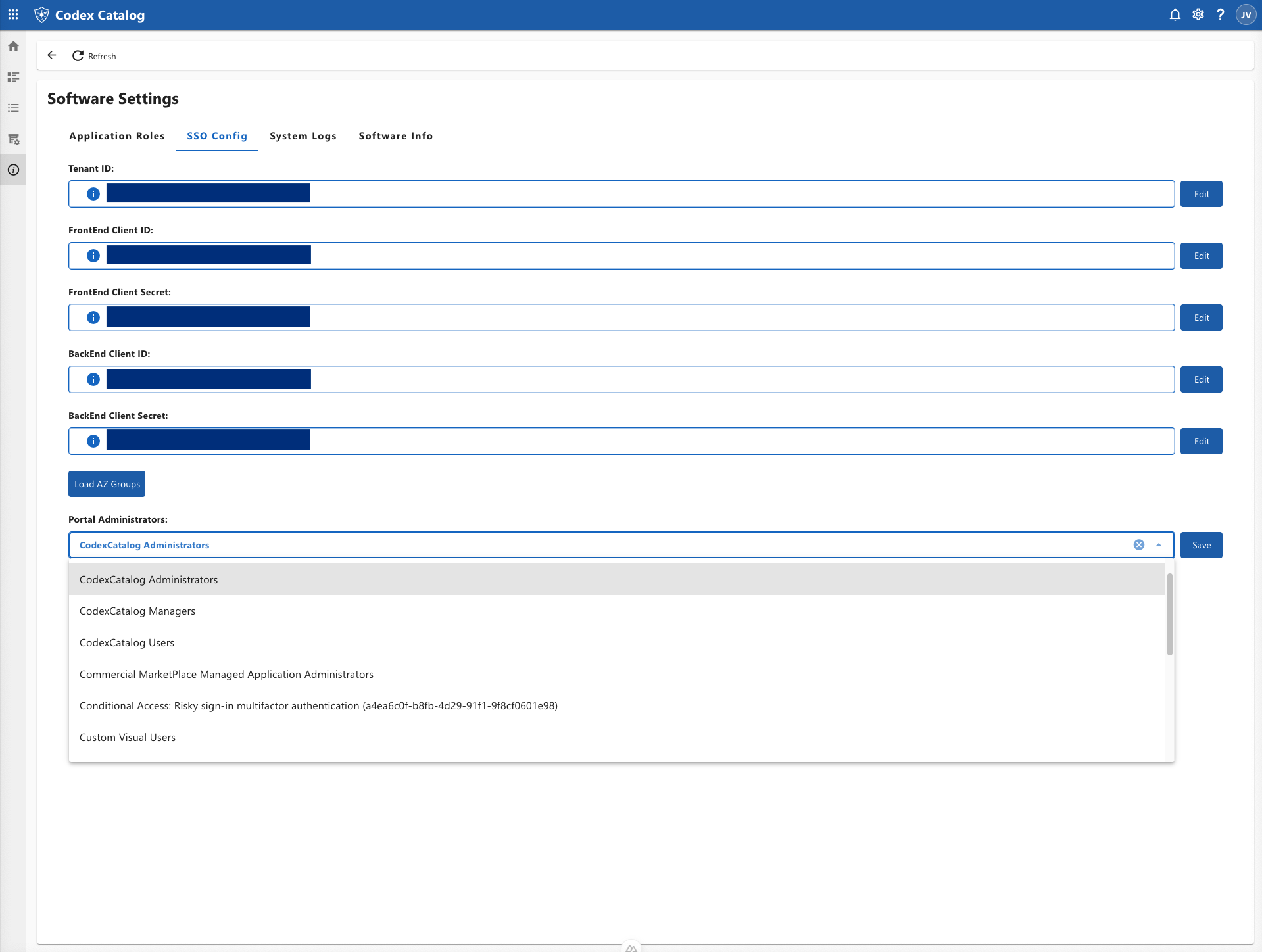
After this, the toggle menu Enable SSO Login unlocks. Turn it On so SSO becomes active.
Editing Later
Administrators can revisit this tab at any time to update IDs or rotate client secrets.
Secrets remain hidden until Edit is clicked.
⚠️ Warning — Be careful when rotating secrets:
Changing client IDs or secrets without updating your identity provider configuration may block user sign-ins.
System Logs (Admin only)
This section allows Administrators to preview and export application or system logs for monitoring and troubleshooting.
By default, Enable System Logs is set to Off.
In this state, the date/time range picker and preview table are disabled.
When switched to On, system logging tools become active, and the Administrator can interact with the interface as follows:
- The Date & Time range picker becomes available to filter logs for a specific time period.
- Click Reset to restore the range to the last 7 days up to the current time.
- Click Export SysLogs to download the logs for the selected range.
- The Preview table becomes visible and displays the following read-only columns:
- Level — Indicates the log type (e.g., INFO, WARN, ERROR).
- Message — The log message or description.
- Line No. — The source line or reference marker.
- Created At — Timestamp of the log entry.
💡 Tip: If the table appears empty, adjust the date range and click Refresh.
Software Info
This tab summarizes current software versions and runtime flags.
All information here is read-only.
➡️ See Software Information for a detailed description of each field and additional troubleshooting guidance.