Create a Data Record
Users can create new records only from Focused View.
1. Open the form
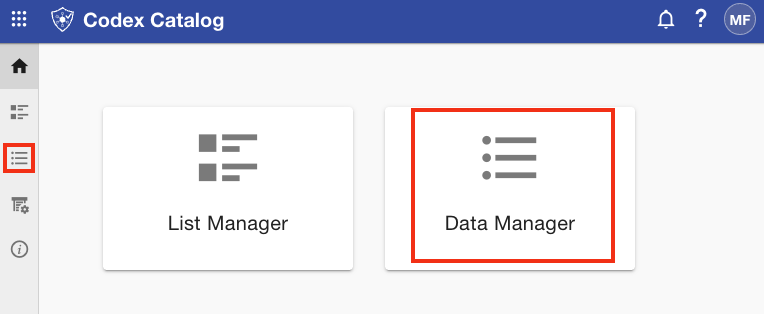
Go to the Data Manager either from the Home card or from the Page Toolbar.
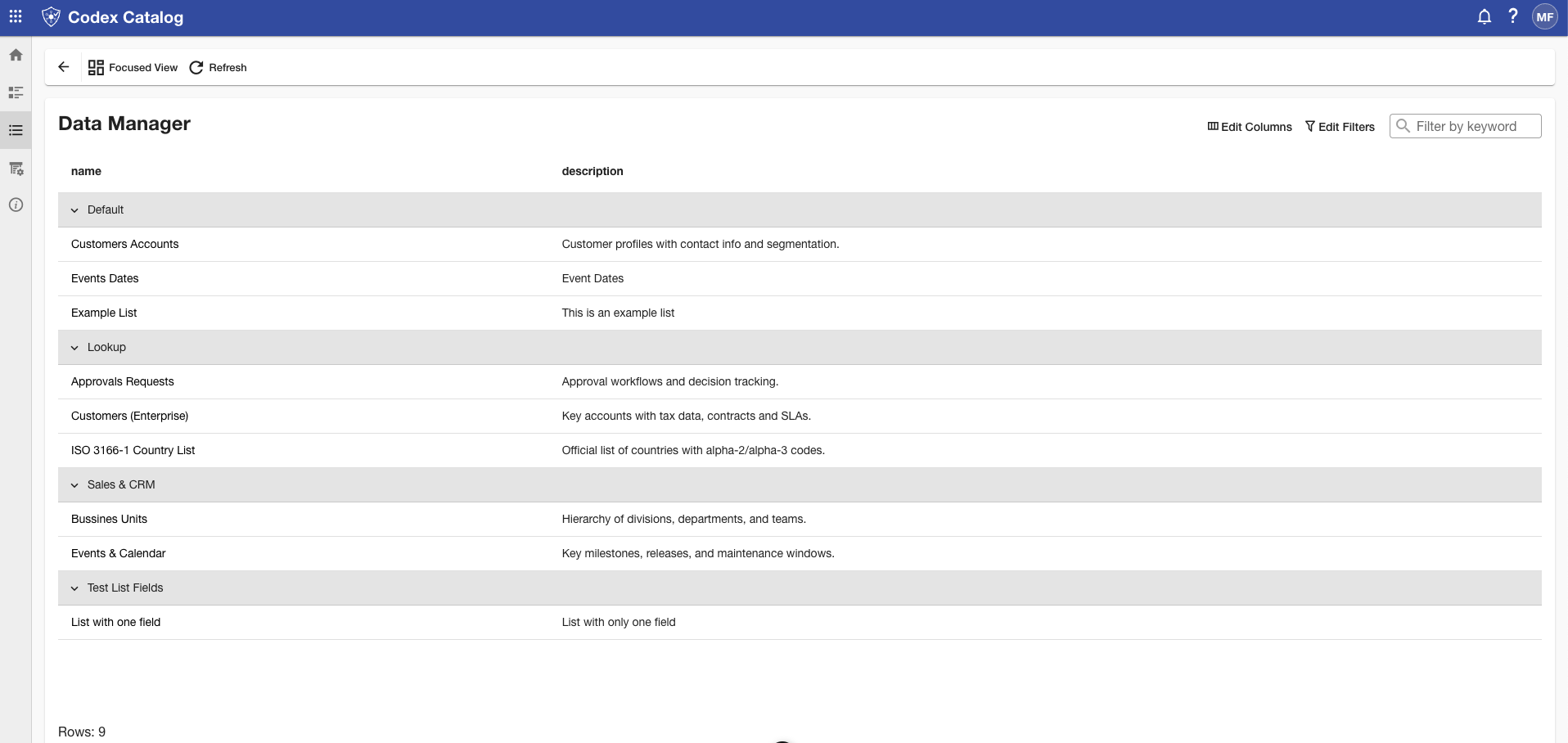
You will see a view with all your lists, similar to the List Manager view.
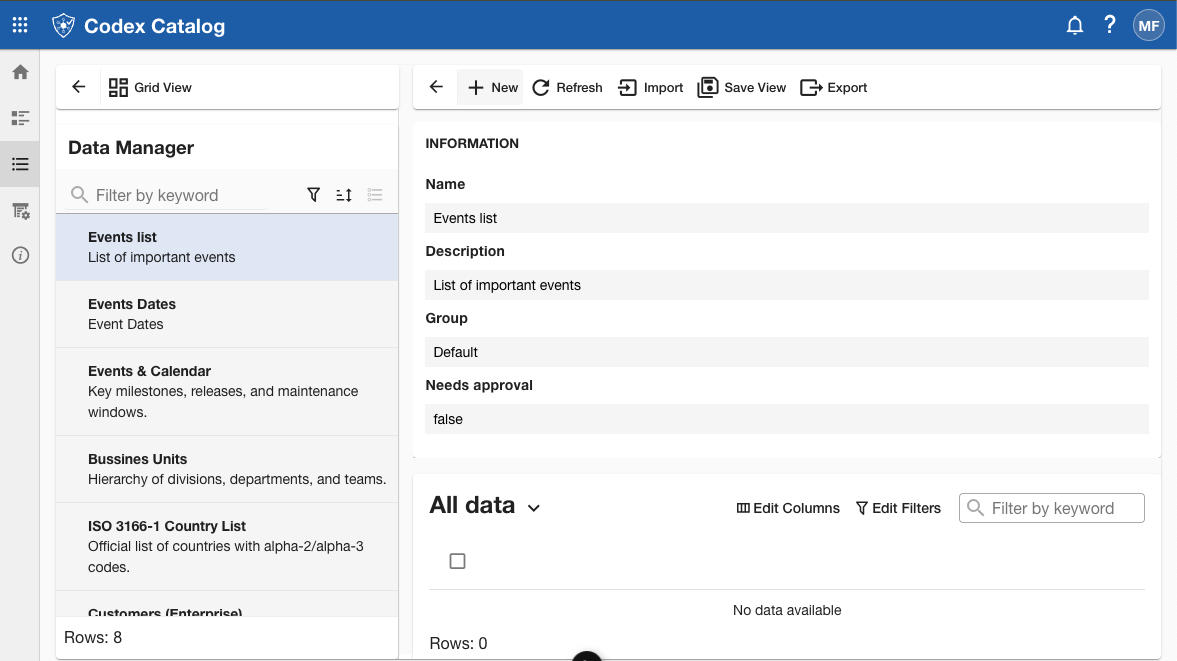
Switch to Focused View and select the list where you want to add a new record.
Then click the + New button in the top bar to open the record creation form.
In Focused View, click the + New button on the Page Toolbar.
2. Complete the record fields
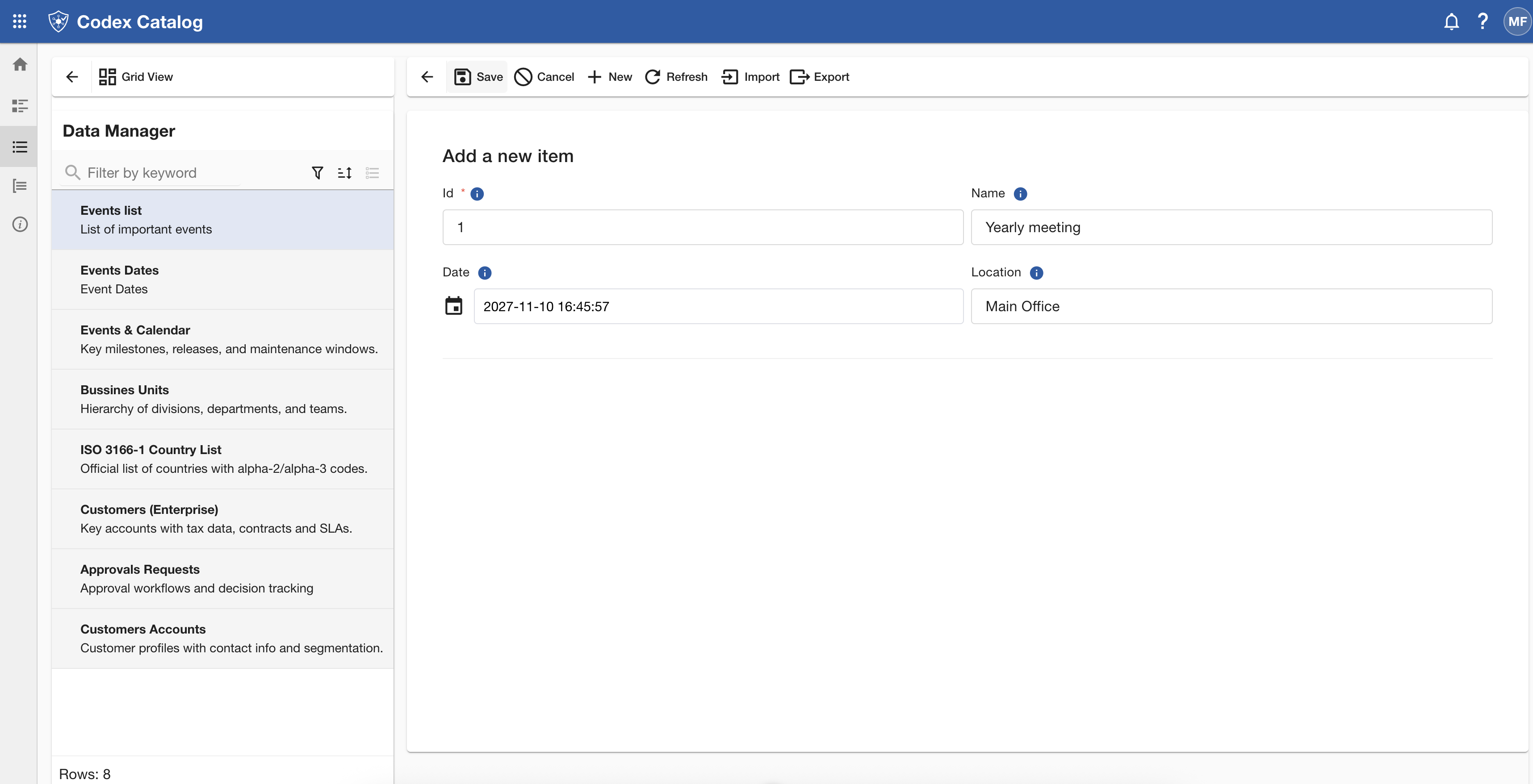
Fill in the required fields for the new record.
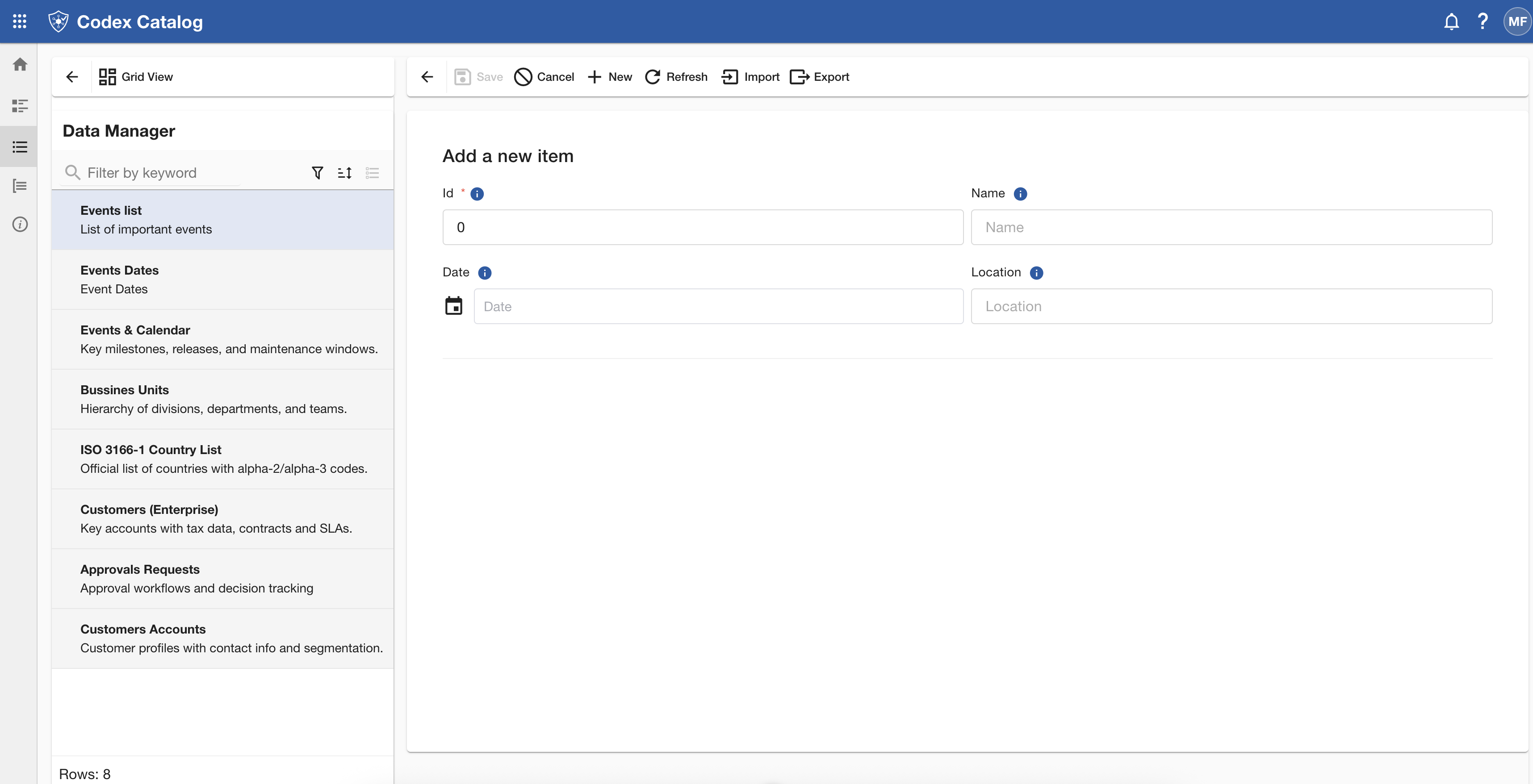
The fields available depend entirely on the list configuration defined by the list owner when the list was created.
Each list may include different types of fields (e.g., text, numbers, dates, booleans, references).
Fields marked with a red asterisk (*) are mandatory.
To view more information about a field, hover over the information icon (i) next to it — a tooltip will appear displaying additional details.
Note: Required fields must be completed before saving.
3. Save or Cancel the new record
- Click Save to create the record. After saving, the new record appears in the data table under the selected list.
- If required information is missing, the form will block saving and highlight the missing parts.
- Click Cancel to close the form without saving.