Delete a List
Who can delete a list?
- Only the Owner of a list can delete it.
- The Delete button is shown only when you select a list you own. If the button doesn’t appear, you don’t have the appropriate access rights.
-
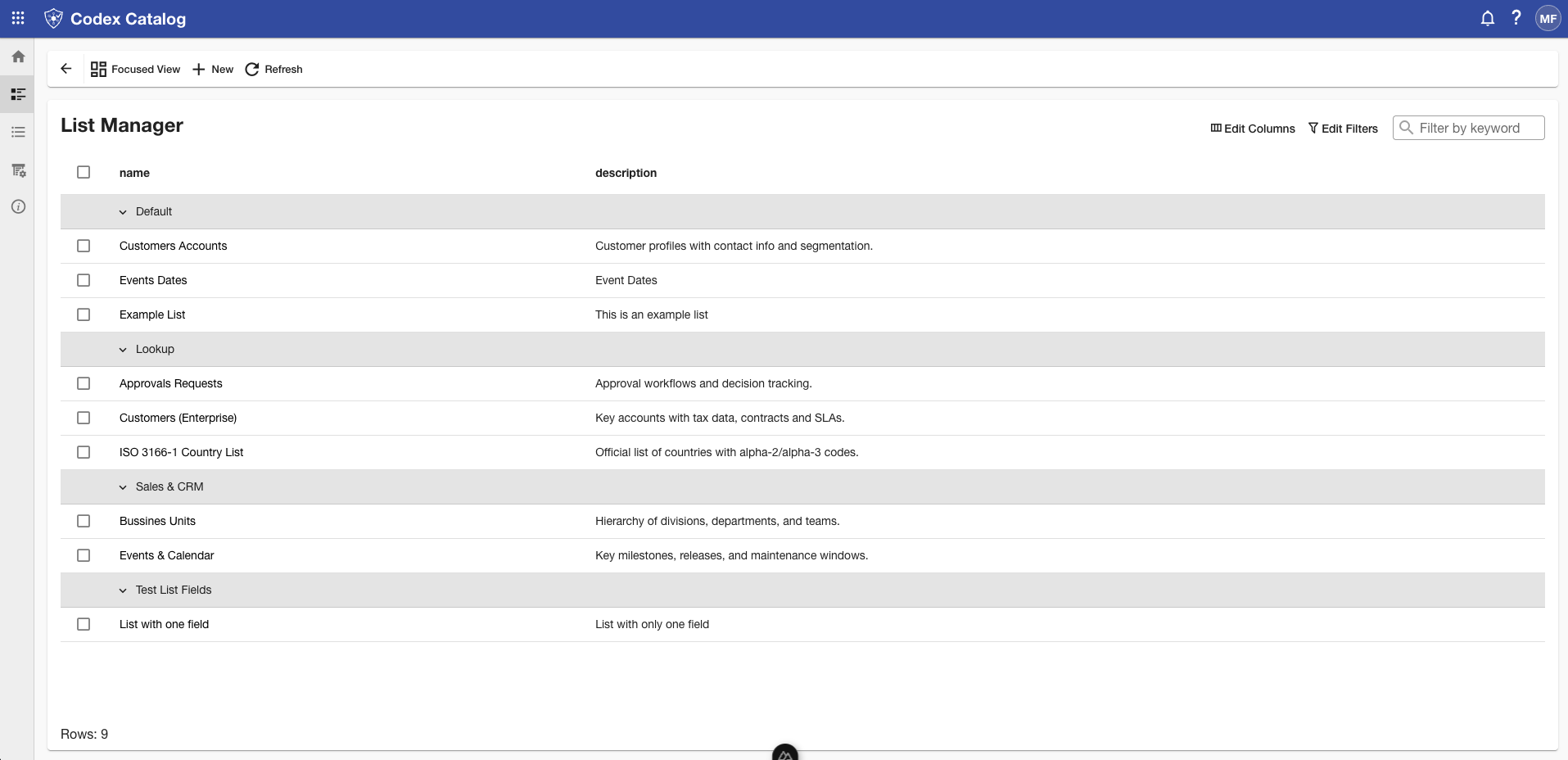
Deleting a list is only available from the List Manager (remember that you can access it from the Home view or the Sidebar).
How to delete
- In Grid View, select the list you want to delete.
The Delete icon will appear in the page toolbar.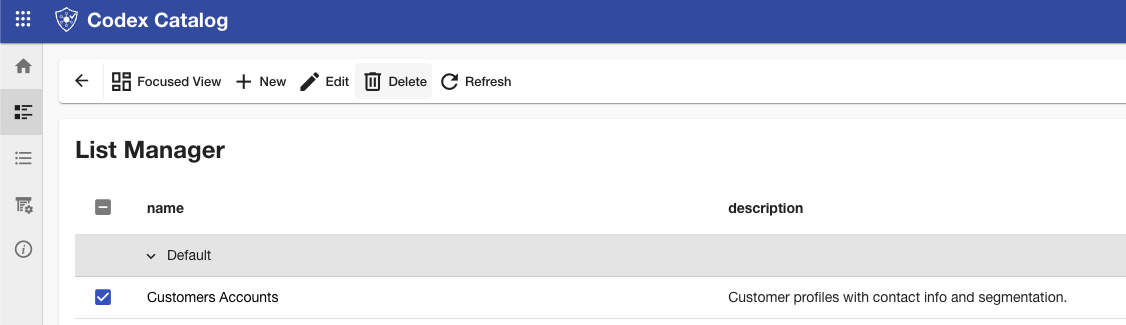
-
Click Delete, then confirm the action in the dialog.
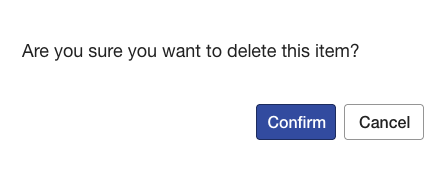
A confirmation notification will appear to indicate that the list has been successfully deleted.

What happens
- The list is removed from the catalog.
- This action is not reversible. Make sure you truly want to remove the list before confirming.
Note: If you select a list and neither Edit nor Delete appears, you likely lack the required permissions or ownership for those actions. Refresh the page if your permissions were recently changed.