View data records
The Data Manager allows you to see the data inside any list you have been explicitly granted Manager permissions to.
View all data from a list
First, open the Data Manager from Home or the Sidebar.
Then, you have two ways to open a list and see the data:
-
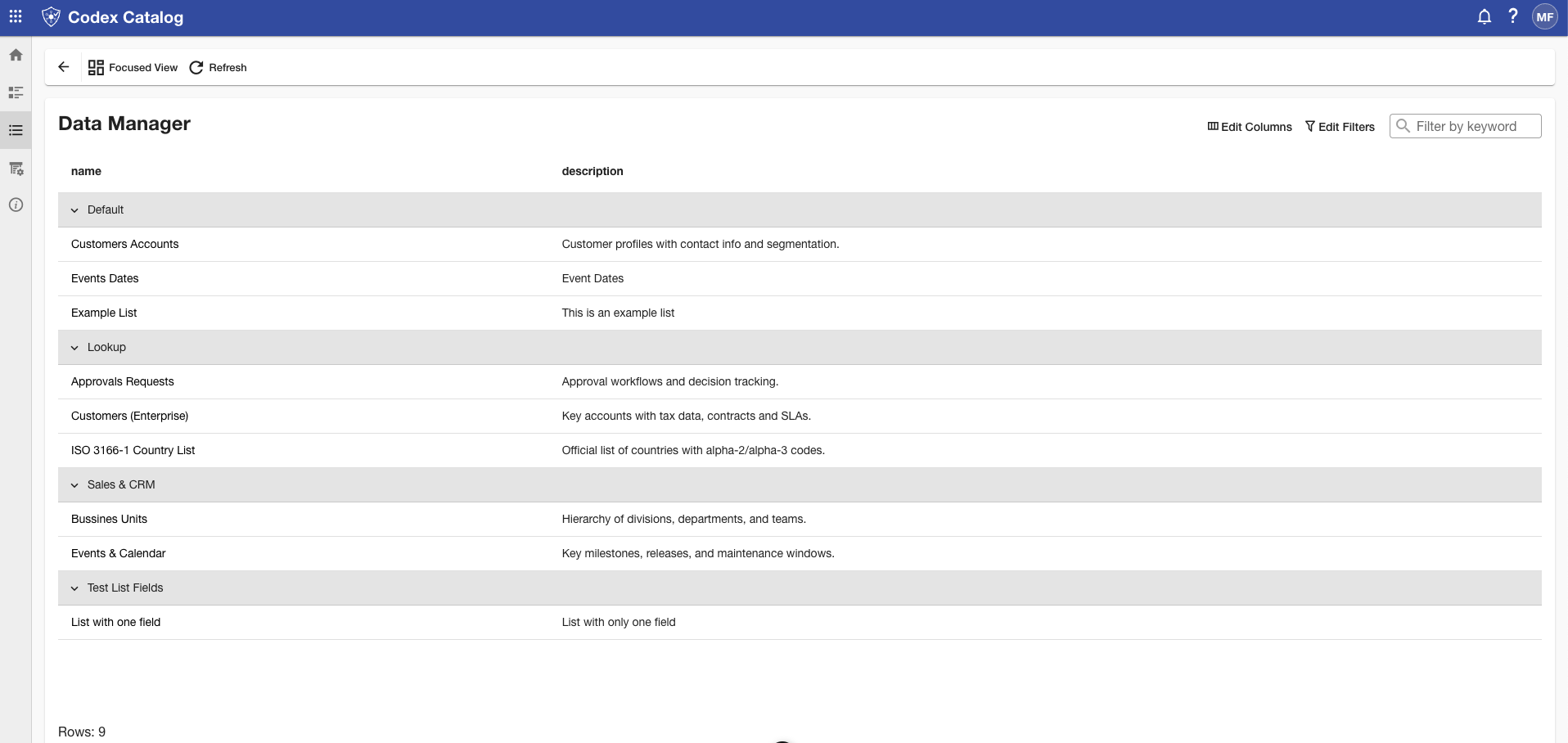
From Grid View, click on a list you want. The new opened view will show all of your data.
-
From Focused View, you will see the records and the list information on top.
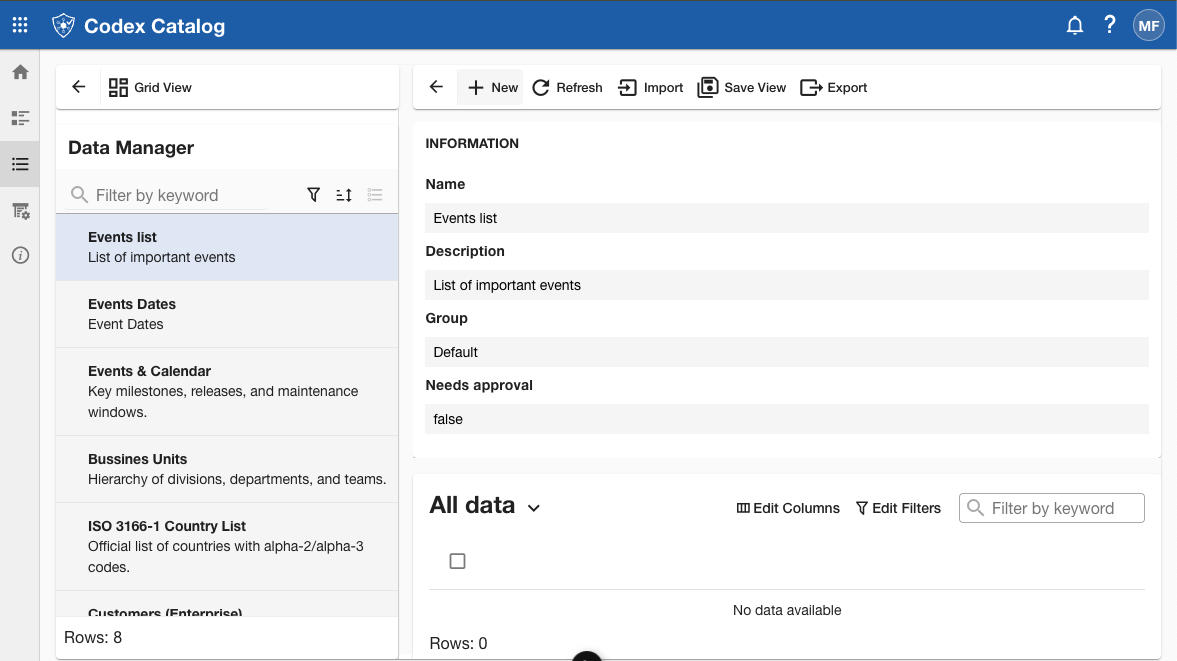
In both cases, you will see the fields you defined as columns for the data.
Sort your displayed data
With a list selected, you can sort the displayed data using the arrow icons located on the right side of each column header.
Click the arrow to sort the lists by the desired fields you defined — in ascending order (up arrow) or descending order (down arrow).
Search a data record by keyword
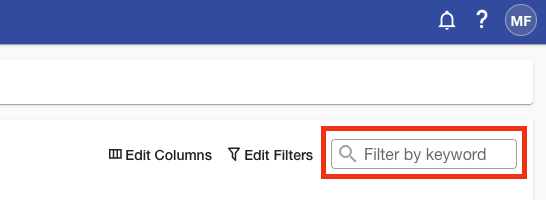
You can use search keywords in the list you selected on Data Manager to quickly find a specific record by any of its fields.
Simply enter a keyword into the Search bar to filter the displayed results. The search applies across all visible columns.
Filter data
Filters allow you to narrow down the data displayed based on the value of specific fields.
In any selected list in the Data Manager section, go to the View Toolbar in the top-right corner of the Main View and click Edit Filters. This will open the Edit Filters panel on the right side of the screen.
Here you can:
- Select a Field of your own.
- Choose an Operator (e.g., equals, contains, starts with).
- Enter a Value to filter by.
You can add multiple conditions by clicking + Add, and then apply or remove them as needed.
At the top of the panel, you will also find options to Reset to Default to start over, or Delete All Filters at once.
When you have finished configuring your filters, click Apply to update the view.
If you want to exit without applying changes, click Cancel to close the panel.
Customize Data Table Columns
First, open a list on the Data Manager (found on the Sidebar or the Home card).
Go to the View Toolbar in the top-right corner of the Main Display and click Edit Columns to customize which attributes are shown in the table.
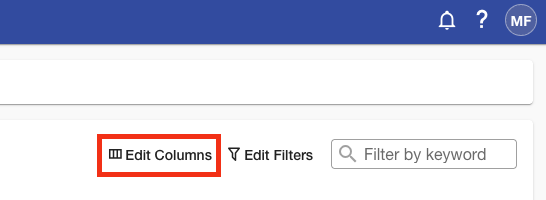
You will see a side menu toggle on the right side of the app.
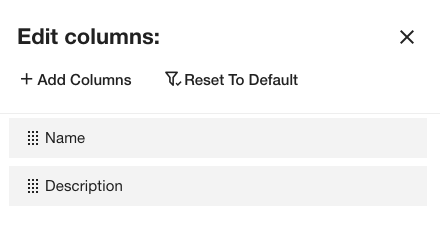
By default, "Status" and "Created By"will be hidden.
Add more columns
To add more values, click Add Columns and check the box next to the attributes you want to display. If you don’t see an attribute you are looking for, use the Search bar at the top of the panel. Once selected, click Add at the bottom (or Close to exit without changes).
Hide a column
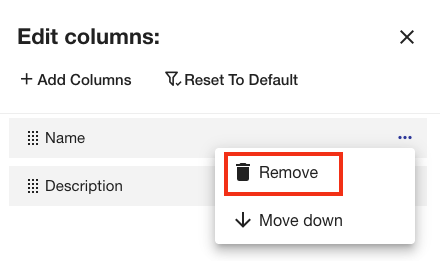
To hide a column, hover over the one you want to remove: a three-point menu will appear. Click on it and select Remove.
Reorder columns
You can reorder columns by dragging and dropping them, or by opening the three-point menu and choosing Move Up or Move Down.
When you finish, click Apply to update the table, or Cancel to discard your changes.
The option Reset to Default restores the original column layout.