Edit a List
Who can edit a list?
You can edit a list if you are the Owner or you’ve been granted edit permissions for that list. The Edit button appears only after you have selected a list. If you don’t see the button, you don’t have sufficient rights.
How to start editing
- Open the list in edit mode (visible only if the user is the Owner or has edit permissions).
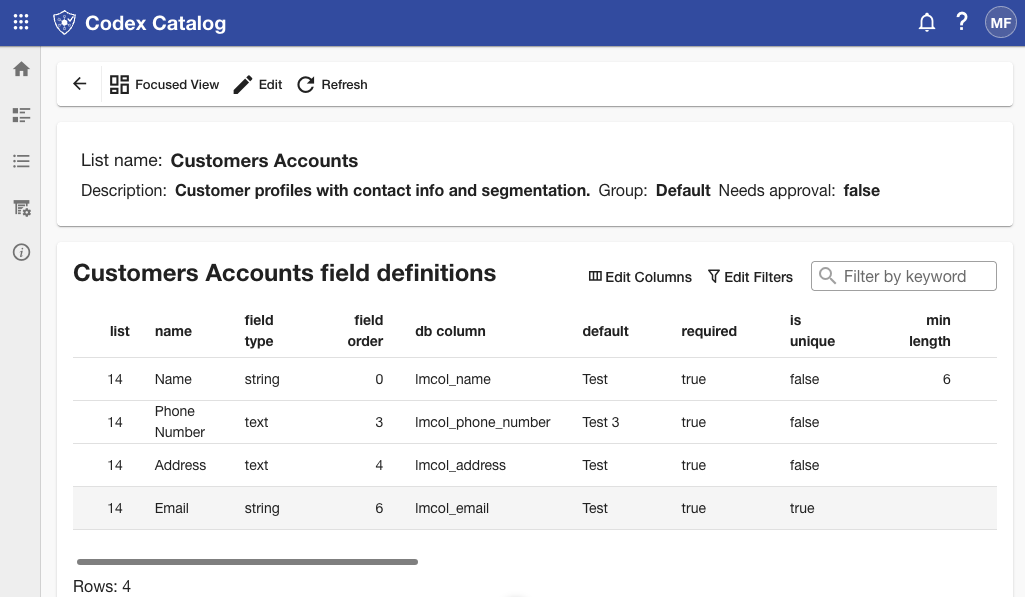
- Click Edit. The Main View will show the list edit mode with the title “Edit [List Name]”.
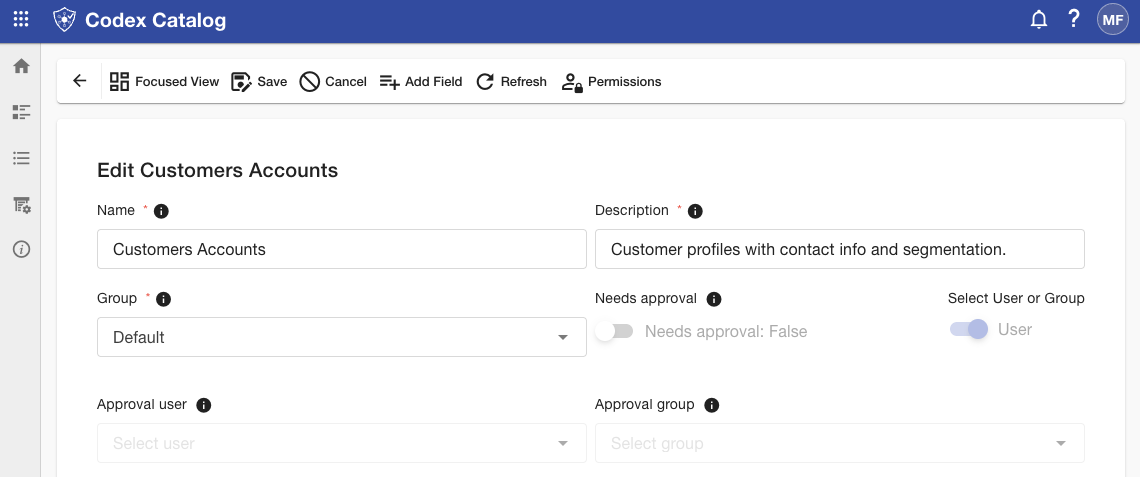
What you can change
- Name — Update the display name of the list.
- Description — Modify the short summary that describes the list’s purpose.
- Group — Change the group the list belongs to.
- Needs Approval — If the list was created with Needs Approval enabled, you can manage the Approval User or Approval Group settings, depending on your permissions.
If this option was disabled when the list was created, it cannot be enabled later (the toggle will remain unavailable). - Select User or Group — If the list was created with Needs Approval enabled, you can switch between User and Group modes at any time.
When you switch, remember to update the Approval User or Approval Group fields, as both dropdowns will be cleared automatically. - Approval User — If you switch the Select User or Group option, you must reassign the Approval User from the dropdown list.
This defines the specific user responsible for approving changes made to records in this list. - Approval Group — If you switch the Select User or Group option, you must reassign the Approval Group from the dropdown list.
This defines the user group responsible for approving changes made to records in this list.
Remember:
- Fields marked with a red asterisk (*) are mandatory and can not be left empty.
- To view more information about a field, hover over the information icon (i) next to it — a tooltip will appear displaying additional details.
List fields while editing a list
- You can Add a List Field, Edit a List Field, or Delete a List Field from this creation menu just as explained in Manage List Fields
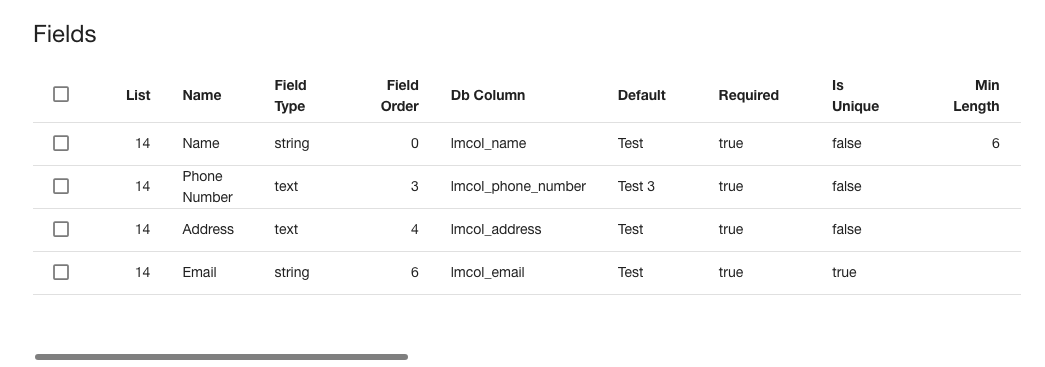
- When editing a field marked Is key, attempting to unset it triggers a confirmation dialog warning that changing the key will clear existing data and leave the list empty. Proceed only if you’re sure.
Save or cancel
Click Save to persist your changes, or Cancel to discard them.
Tip: As it happens when creating a List, if you don’t see Edit Field or Delete Field, select the appropriate row(s) in the Fields table first. “Edit Field” requires exactly one selection; “Delete Field” requires one or more.