First time installation
If you do not yet have a version installed, you may need to install a Codex Catalog Version for the first time.
On your Codex Catalog page, you should see a card showing the latest available version, along with a “SELECT FOR UPDATE” button.
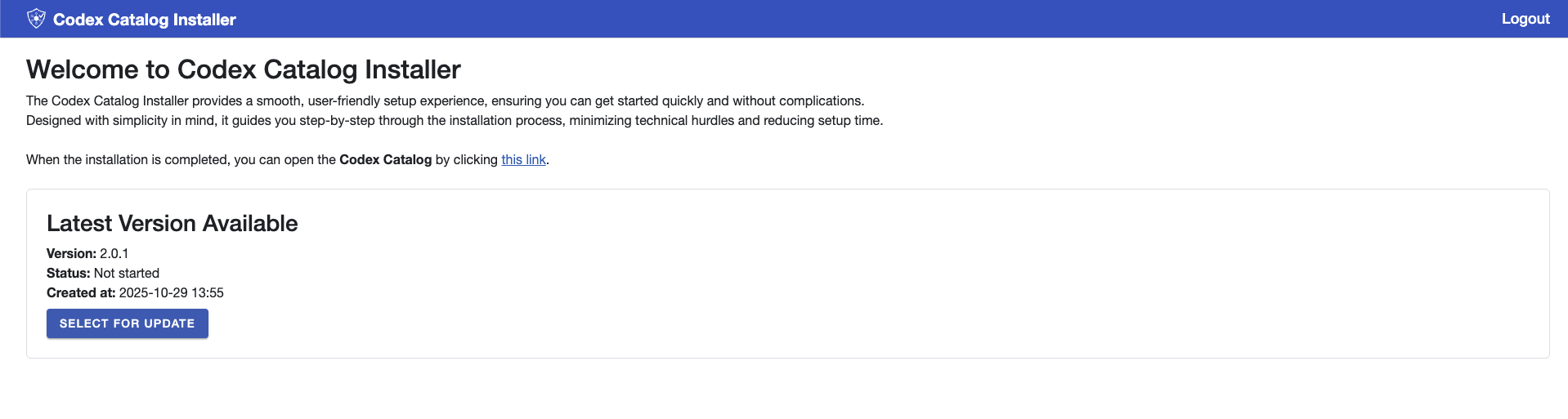
1. Select the update
This will open the Settings modal.
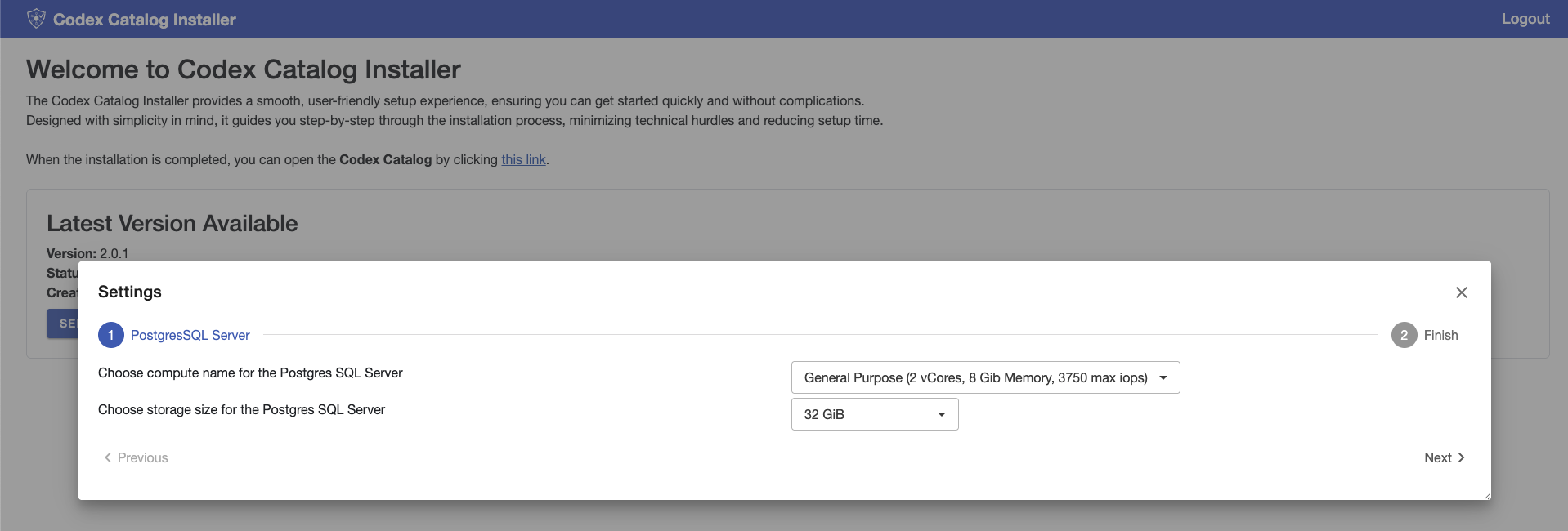
2. Choose your settings
The Settings modal walks you through several steps where you can configure the Codex Catalog update. Examples of configurable options include:
- Compute SKU for the App Service Plan.
- Storage size for the PostgreSQL server.
To proceed, step by step:
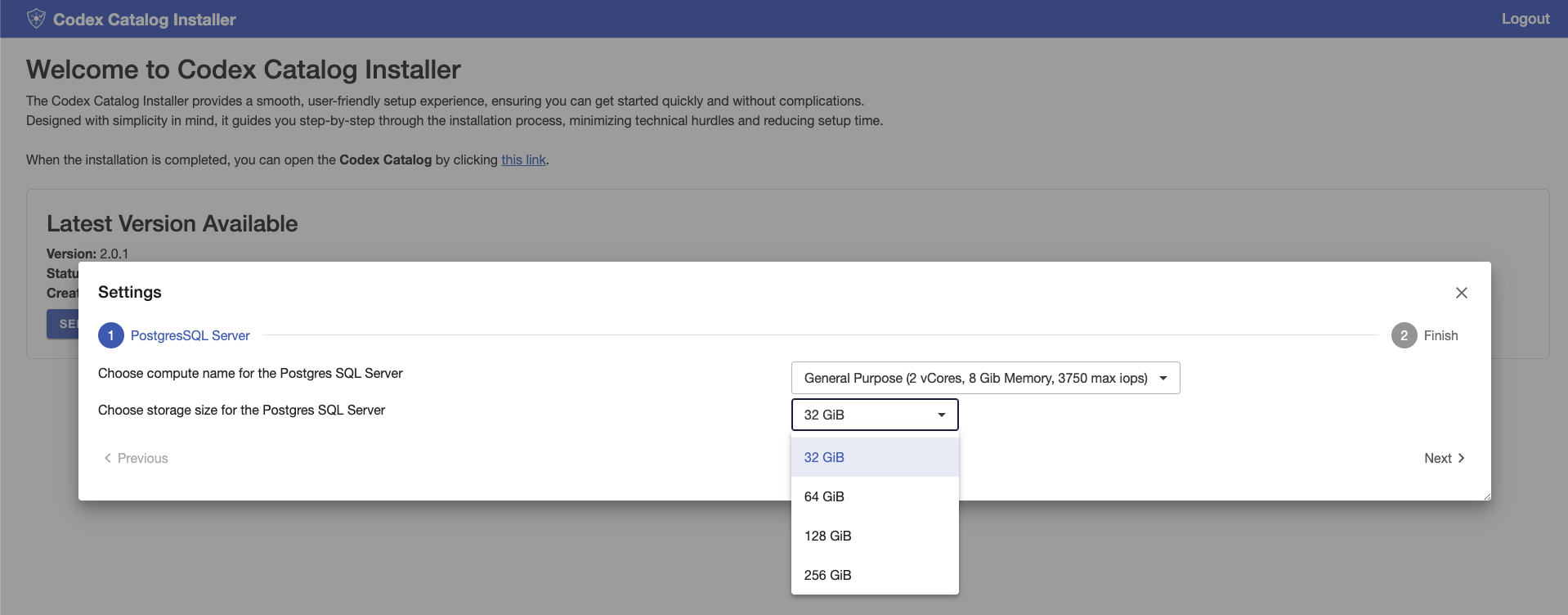
- Select your preferred settings from the dropdown menus.
-
Click Next to move to the following step.
-
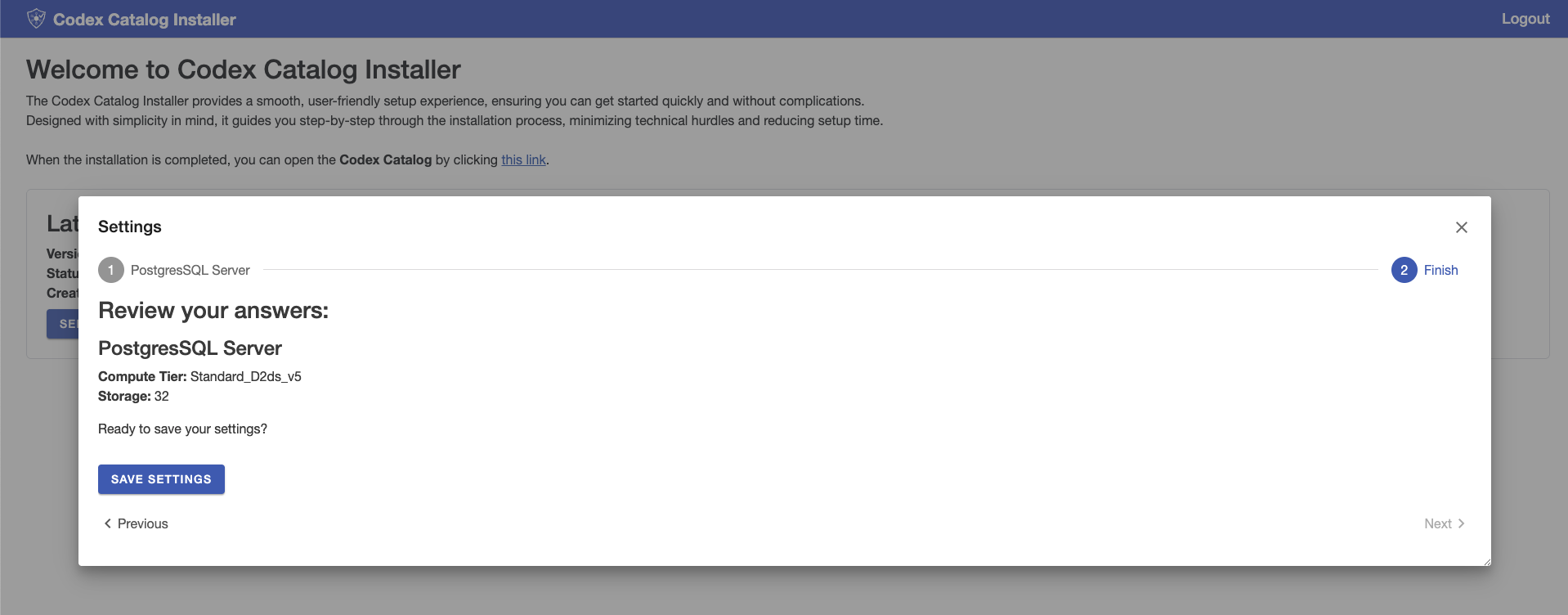
Continue through the steps until you reach Finish, where you can review all your choices. > Note: To change any settings, you can use the Previous and Next arrows, or click directly on the step you want to revisit.
-
When you are ready, click on the button Save Settings. The Installer will save your configuration in Azure.
3. Install the Codex Catalog version
After saving your settings, you will be asked to confirm if you would like to start installing the version you have selected.
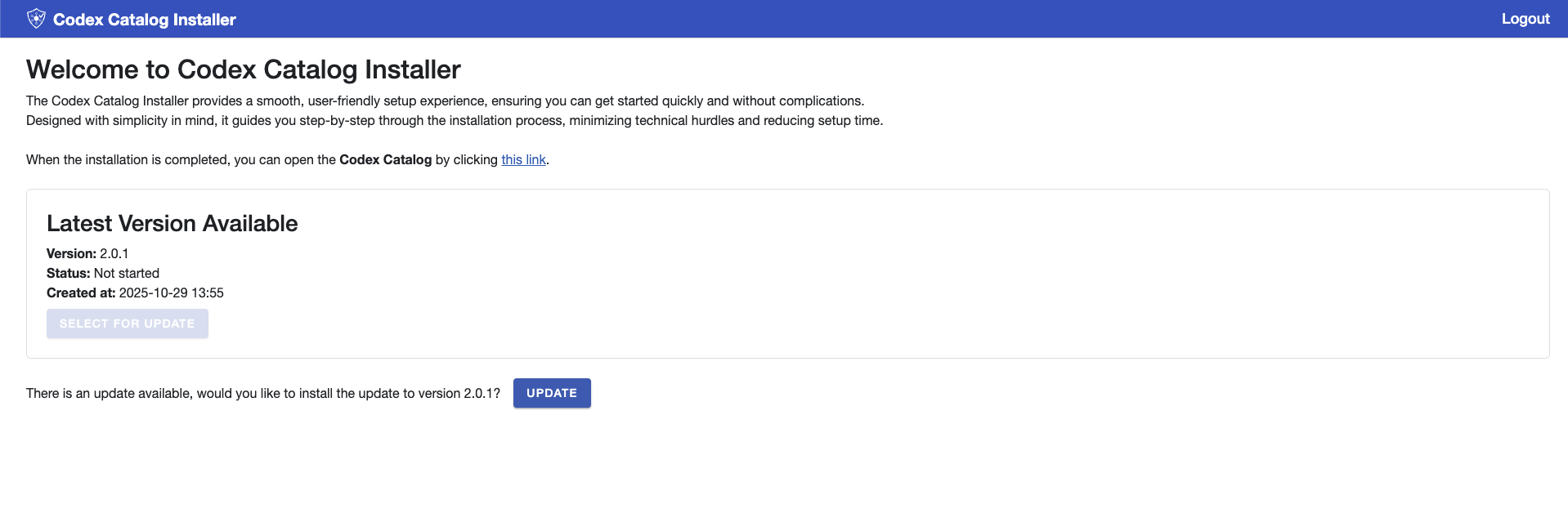
Click the blue Update button to begin the installation.
Once started, you will see the status and progress of the installation directly on screen.
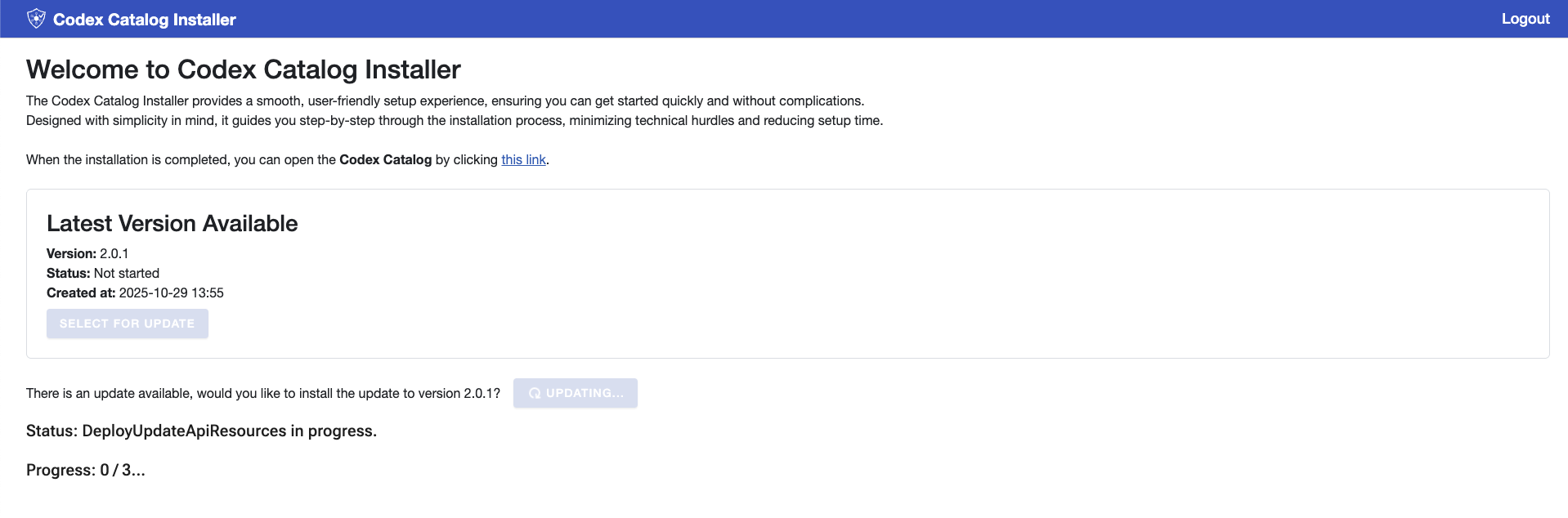
Please keep in mind that this installation will take about 15 minutes to be completed.
Update Steps and Statuses
When an update starts, the installer runs through three main steps:
- DeployUpdateApiResources – Azure prepares the infrastructure resources required for the update (such as networking, storage, and service dependencies).
- DeployUpdateApiApplication – The application components are deployed into the prepared resources.
- TriggerUpdateApi – The update process is triggered and executed, applying the new version of the Codex Catalog.
Status Indicators
Each step displays a status so you can follow the progress of the installation:
- Not started – The step has not yet begun.
- In progress – The step is currently running.
- Failed – An error occurred and the step did not complete.
- Completed – The step finished successfully.
End of installation
When the update completes, the installer will confirm that your Codex Catalog is ready to use.
You will then see the version you installed and its settings.
